Waterglass Waves documentation
Waves runs AI agents for you, on European infrastructure. You describe a task in plain language. An agent does the work in its own isolated sandbox and hands you back a report and its files. This page explains each part of Waves, and how to use it from the console, the command line and the API.
About Waves
Waves is a platform for managed AI agents. You do not run any servers. Waves provides the sandboxes, the access to models and a record of everything that happened.
- An agent is a reusable setup: a name, a model, a system prompt and a set of tools.
- A run is one time an agent works on a prompt. Each run gets its own sandbox: a small Linux computer with a shell, a file editor and only the network access you allowed.
- When a run ends, Waves keeps its files, writes a report and removes the sandbox.
What an agent can do:
- Work in a real Linux sandbox: run commands, write scripts, process data and produce files.
- Use the model you choose. Every model shows where it is processed, and most are processed inside the European Union.
- Search the web, read pages and use a real browser.
- Work in tools you already use, such as Notion, Linear, Slack, GitHub and HubSpot, and in the Google Sheets, Docs and Drive files you pick.
- Use your credentials without seeing them, and reach your own systems through MCP servers.
- Remember things between runs, look things up in documents you provide, and follow procedures you wrote.
- Start by hand, on a schedule or from a webhook. You can send it a message while it works, stop it and resume it.
- Receive files with a run.
- Wait for your approval before a step you want to check.
- Write a short report at the end of every run.
PrinciplesEverything is off until you turn it on, so an agent has only what you gave it. Everything is also recorded: every run keeps a full log, every change to an agent is a new version, and every euro of spend belongs to a run.
Waves fits tasks with a clear goal and a result someone can check.
Getting access
Sign up at https://waves.waterglass.ai/signup. Waves is for businesses only, so you confirm that you sign up as one. We then email you a confirmation link, valid for 24 hours. For managed customers, we create the account.
Each person belongs to one workspace, in one of two roles:
| Role | Can do |
|---|---|
| Owner | Everything, including API keys and the plan |
| Member | Everything else. Members can see API keys but not create them. |
Build your first agent
This walkthrough takes you through the whole process once.
Ask the Assistant insteadThe Waves Assistant on the Dashboard can do all of this with you in a chat. It asks before each change.
-
Create an environment. An environment sets the size of the sandbox and what it may reach on the network. Open Environments and create one. Leave the network closed for now, so the sandbox reaches nothing on the internet.
-
Create an agent. Open Agents and create one. Give it a name and a system prompt, and leave everything else as it is. The system prompt says who the agent is, which rules it follows, what "done" looks like and what it must never do. Keep the details of today's task for the run prompt.
A first system prompt that works
"You write short, factual summaries. Given a topic in the run prompt, write a one-page summary in Markdown and save it as summary.md. State your assumptions at the end."
-
Start a run. Open Runs, click New Run, choose the agent and your environment, and type a prompt. The run page shows what the agent does, step by step.
-
Read the result. The Report tab holds a short summary the agent wrote. The Artifacts tab holds the files it made, in one archive.
-
Add more, one step at a time. For example, give the agent web search, let the environment reach one website, give the agent a credential, add a memory, or put the agent on a schedule. Each is described below.
Dashboard
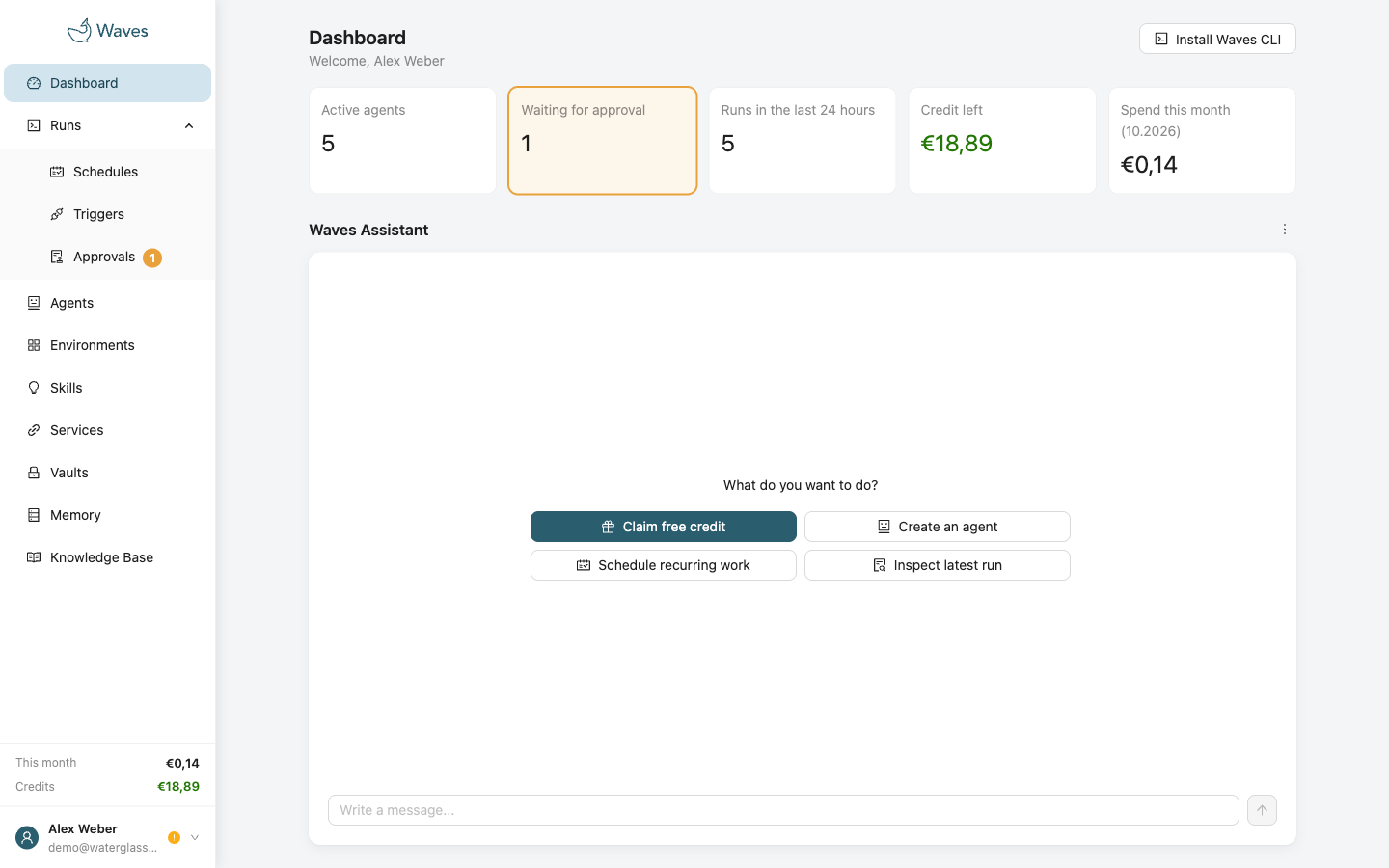
The Dashboard is where you land after signing in. It shows what needs your attention, such as runs waiting for approval, and what your agents cost this month. Install Waves CLI, at the top right, shows how to install the command-line tool for your workspace.
The Waves Assistant
Self-serve workspaces get a chat with the Waves Assistant. It acts with your permissions, and it can:
- Build an agent with you from start to finish: the environment, the knowledge, the agent itself and a first test run.
- Find out why a run failed, and suggest a fix.
- Set up a schedule, run a trigger by hand and recommend a model.
- Explain how Waves works. It reads this documentation.
- Search the web, within a daily allowance. Google processes these searches outside its European residency terms.
- Send a feature request to the Waves team.
Every change asks firstBefore the Assistant changes anything, it shows an approval card. Nothing happens until you press Approve. Show request shows exactly what will be sent. A card expires after 15 minutes.
Good to know about the Assistant:
- It comes back to you. Approve a run and close the tab. When the run ends, the Assistant writes what happened into the chat and emails you.
- It remembers your preferences in a short note, which you find under Manage memory. Clear chat deletes the conversation for good.
- Never paste a credential into the chat. The Assistant refuses it, creates a vault and sends you to the vault's page instead.
- Some steps stay in the console, and the Assistant sends you there. These are credential values, payments, API keys, creating a trigger and rotating its secret, webhook signing secrets, pasted service tokens, write access to services and files, and picking Google files.
- Files for a run cannot be added in the chat. Add them on New Run.
Which surface you seeSelf-serve workspaces get the Assistant. It runs on Waterglass Qwen, an open source model run by Waterglass on European infrastructure. Workspaces billed by invoice see a table of their recent runs instead.
Agents
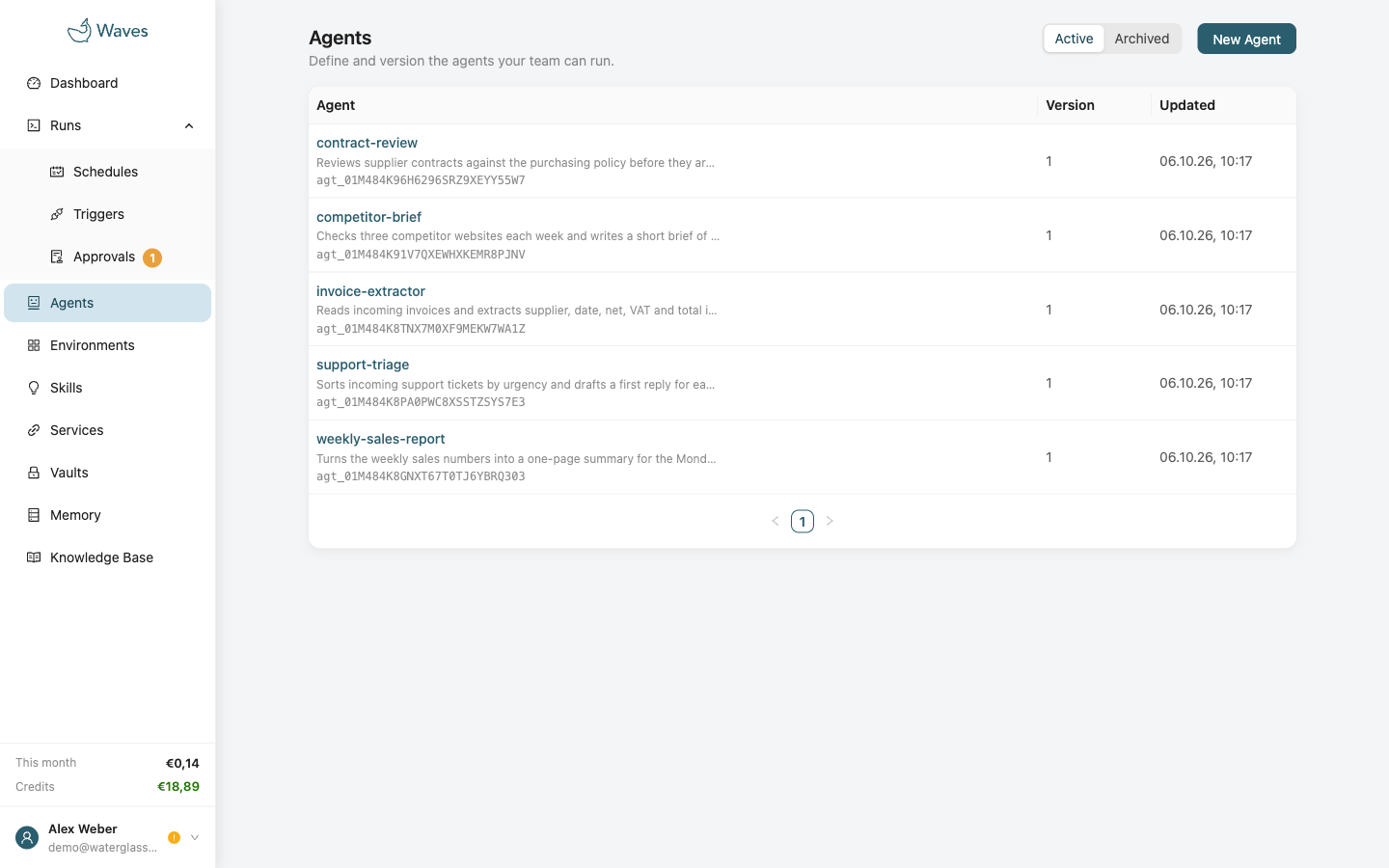
An agent is a reusable setup for an AI worker. It holds:
- A model, and optionally a fallback model.
- A system prompt.
- The tools, services and vaults it may use.
- Its memory, knowledge base and skills.
- Its limits for each run.
You can run an agent as often as you like. Each run is separate. You can edit an agent in the form or as YAML. See Agent configuration.
Every save is a new versionSaving an agent creates a new version, and old versions never change. You can read an old version at any time, or go back to it. If two people edit an agent at once, the second save is refused instead of overwriting the first.
Model and fallback
Every model shows where it is processed and what it costs. You can add a fallback model. If the main model is unavailable, the run continues on the fallback. It switches back when the main model recovers.
Where the fallback is processedA fallback receives the same prompts as the main model. Check where it is processed before you save. Pick it from a different maker, so that one outage does not stop both.
Tools, services and vaults
- A service's tools appear after you connect the service. If you disconnect it later, the agent keeps its tools. They are marked not connected.
- You can add a connected service, or any other MCP server by its address. Test checks a server before you save.
- For an MCP server that needs a token, save the token in a vault as an MCP bearer credential, with the server's address as its key. Then add that vault to the agent.
- For each vault, choose full access or only the credentials you need. Full access includes credentials added to the vault later.
Limits
Each run has three limits: turns, runtime and cost. A run that reaches one of them stops.
- A turn is one step of the model. Many small tool calls use up turns quickly.
- The cost limit is the most a run may take from your credit, without VAT.
- New Run can use a different model and different limits for one run, without changing the agent.
Files and approvals
Two switches on the Run settings step are off until you need them:
- Accept incoming files lets runs of the agent receive files. See Sending files with a run.
- Let the agent ask for approval makes a run wait for approval before chosen steps. See Approvals.
Environments
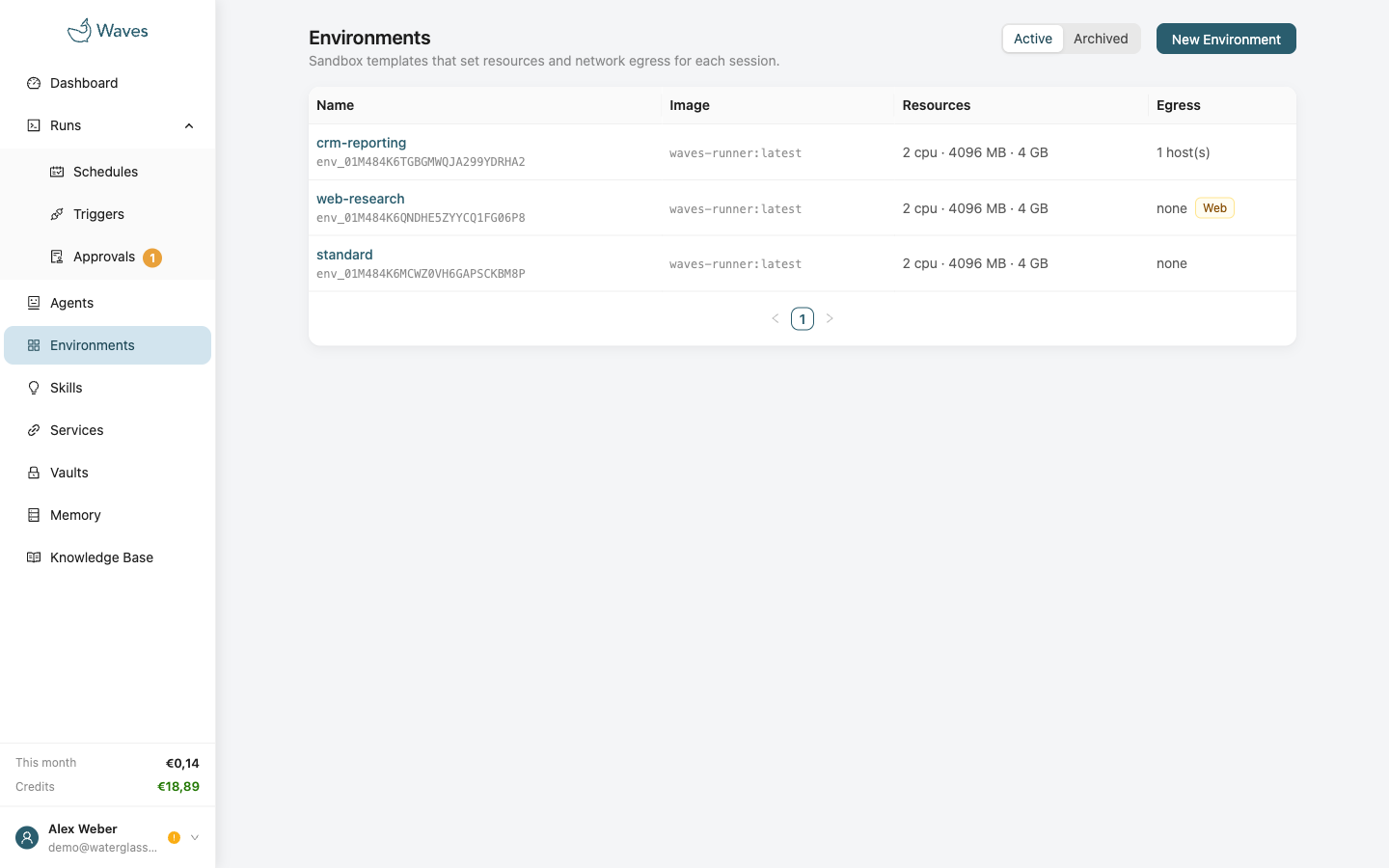
An environment sets the sandbox an agent runs in: its size and its network access. It is not part of the agent. You pick an environment each time you start a run, a schedule or a trigger. That way, the same agent can run locked down one day and with web access the next.
A sandbox can have up to 4 CPU cores, 4096 MB of memory and 4 GB of disk.
Closed by defaultA sandbox reaches nothing on the internet until you allow it. Start with the shortest list of hosts that works.
Network access:
- Allowed hosts are up to 100 host names the sandbox may reach, such as
api.example.com. Each one includes its subdomains. The sandbox reaches them on ports 80 and 443 only. - Web access opens the whole public web, in addition to the list.
- Private addresses stay blocked either way.
- An agent's own MCP servers are always reachable for its runs.
The browser needs web accessAllowed hosts apply to the terminal and to web fetch. The browser cannot be limited to a list, so it only works with web access on.
An environment can also hold environment variables that every run in it gets. Keep secrets in a vault instead.
Web access plus credentialsWith web access on, a run can reach any public website. If it also holds credentials, a crafted page could try to trick the agent into sending them somewhere. Give research agents web access but no vaults. Give agents with credentials a short list of hosts.
Skills
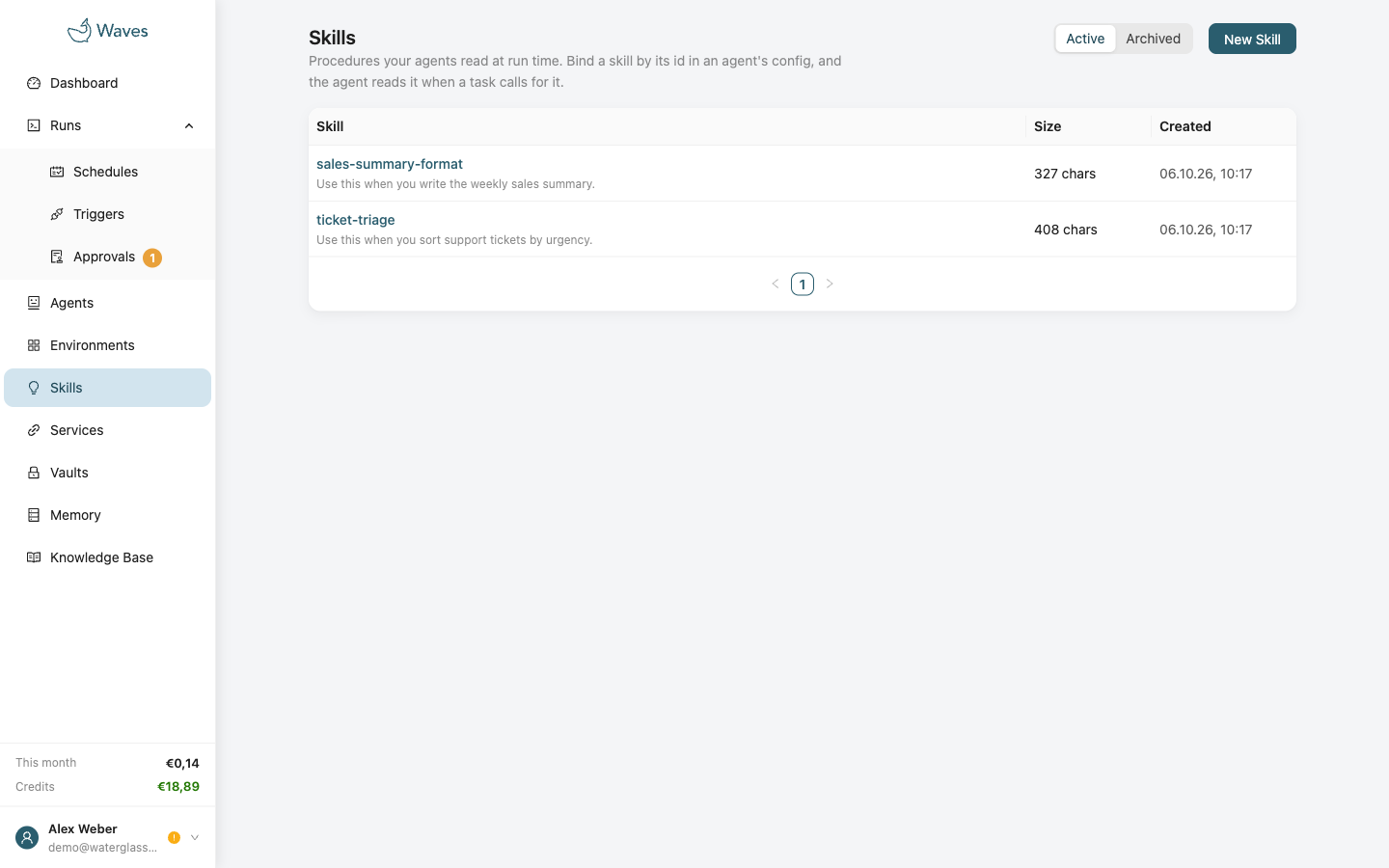
A skill is a written procedure an agent can follow. It has a name, a short description and a Markdown body.
- At the start of a run, the agent sees the name and the description of each of its skills.
- The agent reads a skill's body only when its task matches.
- One skill can be used by many agents.
Skill, knowledge base, memoryA skill is a procedure you write. The agent follows it and cannot change it. A knowledge base is reference material you provide, and the agent searches it. Memory is what the agent writes for itself.
How to write a good skill:
- Write the description as the moment to use the skill, such as "Use this when you approve an expense". The description is what makes the agent open the body.
- In the body, describe the result you want, the steps, and the facts the agent cannot find out alone. For example: how a system behaves, what fails without an error, and what the result must look like.
- Do not put code, data or files in a skill. An agent that gets a finished script copies it instead of understanding the task.
- Material that must be quoted word for word belongs in a knowledge base.
Archiving a skill in useIf you archive a skill that an agent still uses, that agent's next run fails and says why. Remove the skill from the agent first.
Services
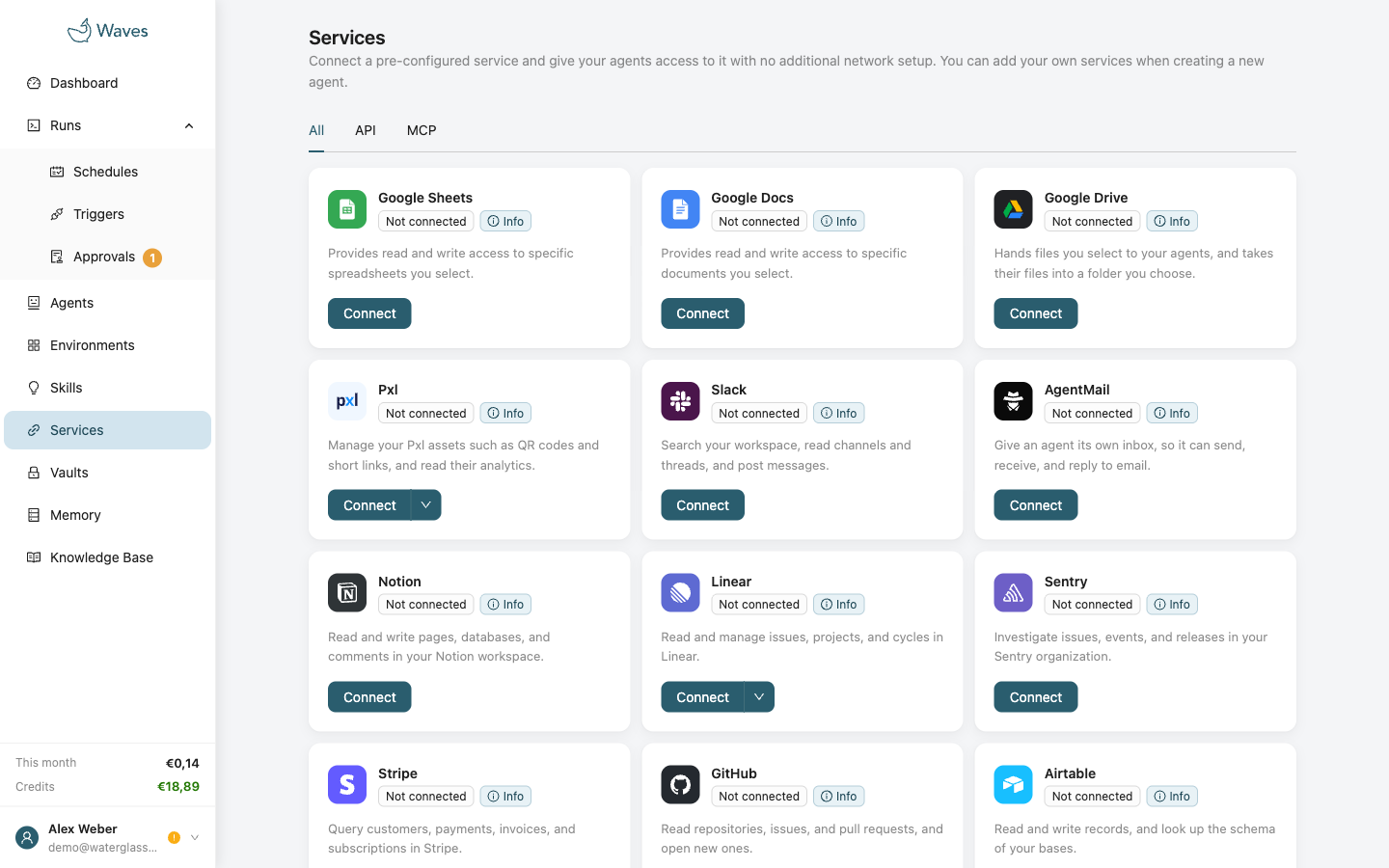
A connected service is a tool your agents can use, such as Notion or Google Sheets. You connect it once for the whole workspace, and Waves keeps the connection alive. There are two kinds:
- MCP services: your agents talk to the provider's own server. Each one is connected with the least access it needs.
- API services: Waves talks to the provider for your agents. You choose which files or items agents may use, and which they may change.
| Service | Kind | Connect | Notes |
|---|---|---|---|
| Notion | MCP | Sign in at Notion | |
| Linear | MCP | Sign in, or paste a token | |
| Sentry | MCP | Sign in at Sentry | Limit access to one organisation or project |
| Stripe | MCP | Sign in, or paste a token | |
| Slack | MCP | Sign in at Slack | |
| GitHub | MCP | Sign in, or paste a token | |
| Airtable | MCP | Sign in at Airtable | |
| Vercel | MCP | Sign in at Vercel | Limit access to one team and project |
| Supabase | MCP | Sign in at Supabase | Read only. Limit access to one project |
| HubSpot | MCP | Sign in at HubSpot | |
| AgentMail | MCP | Sign in at AgentMail | |
| Google Sheets | API | Sign in at Google | Only the spreadsheets you pick |
| Google Docs | API | Sign in at Google | Only the documents you pick |
| Google Drive | API | Sign in at Google | Only the files you pick, and one folder |
| Pxl | API | Sign in (read only), or paste a token | Short links and QR codes |
How it works:
- Click Connect. Most services send you to the provider to sign in. Some ask for a token instead.
- Then add the service on an agent's Tools step. An agent only gets the services in its own setup.
- Test connection asks the provider whether the connection works. Needs reconnect appears when the provider has withdrawn access.
- Disconnecting deletes the stored access right away. For a service you signed in to, Waves also asks the provider to revoke it.
Only the Google files you pickConnecting a Google service gives agents no access to any file. You then pick single files in Google's own file picker, and agents can see only those.
Google Sheets
- Each spreadsheet you picked has a write switch. You can only turn it on for a sheet you can edit yourself.
- Agents can list, read, write, append rows, clear ranges and create spreadsheets.
Google Docs
- Docs has its own sign-in, its own list of documents and its own write switches.
- Agents can list, read, create, append to and replace documents, in Markdown.
- Images are not allowed in anything an agent writes.
Replace overwrites everythingReplace whole overwrites the entire document, not just a part of it.
Google Drive
- Drive is for files of any format, and it has its own sign-in.
- Choose one folder where agents may add files, and pick the files they may read.
- Agents can list files, pull one file of up to 50 MB into the run, and push a file to your folder.
- A pulled Google Doc arrives as Markdown, a Sheet as Excel and Slides as PowerPoint. A pushed Markdown file becomes a Google Doc.
- Agents cannot see files a person put into the folder. Add those files on the Services page too.
Pxl
- Signing in gives Waves read access only.
- A token you create in Pxl (Settings, API) can read and change everything. With a token, the card has a write switch.
- To let agents create or change links, connect with a token.
- Pxl reports the last 30 days and allows 500 requests a day per token.
Content is data, not instructionsSpreadsheet cells, document text and link titles are written by whoever can edit them. Agents read them as data, never as instructions.
Vaults
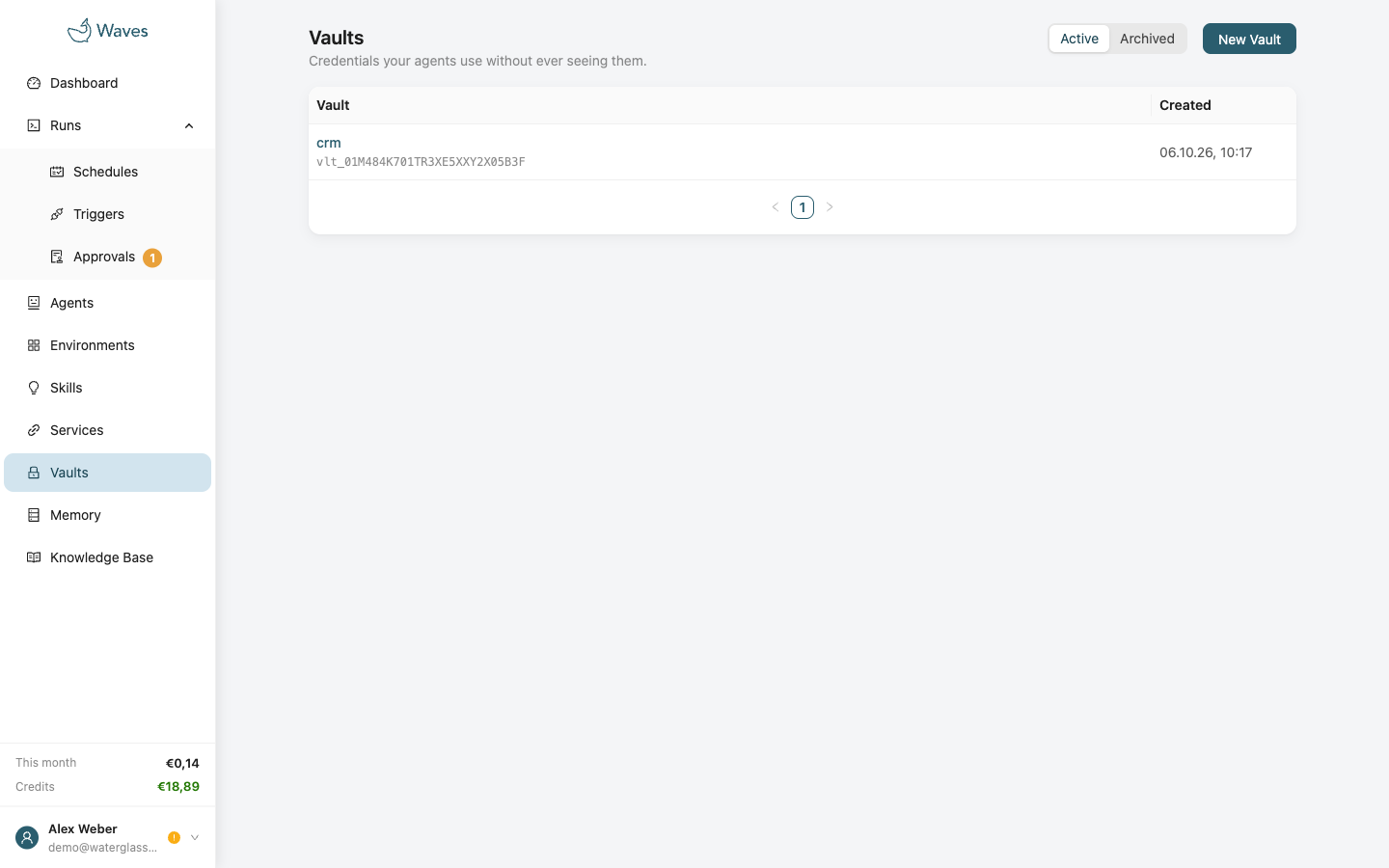
A vault holds credentials for your workspace. Agents use them during a run without seeing them in a prompt, a log or the run's record. There are two kinds of credential:
- An environment variable is placed in the sandbox under the name you give it, such as
GH_TOKEN. The agent can use it with any host its environment allows, so pair it with a short list of hosts. - An MCP bearer token signs in to one MCP server, matched by the server's address. It never enters the sandbox.
Values cannot be read backNobody can read a credential's value after it is saved, neither you nor an agent. Known values are hidden in run logs.
Rotate replaces a credential's value. Agents get the new value from their next run.
Give credentials, not whole vaultsAdding a vault to an agent does not give it everything in the vault. On the agent's Tools step, choose the credentials it needs. Only those reach its sandbox. You can also add a vault to a single run, schedule or trigger, but a run never gets more than its agent was given.
Memory
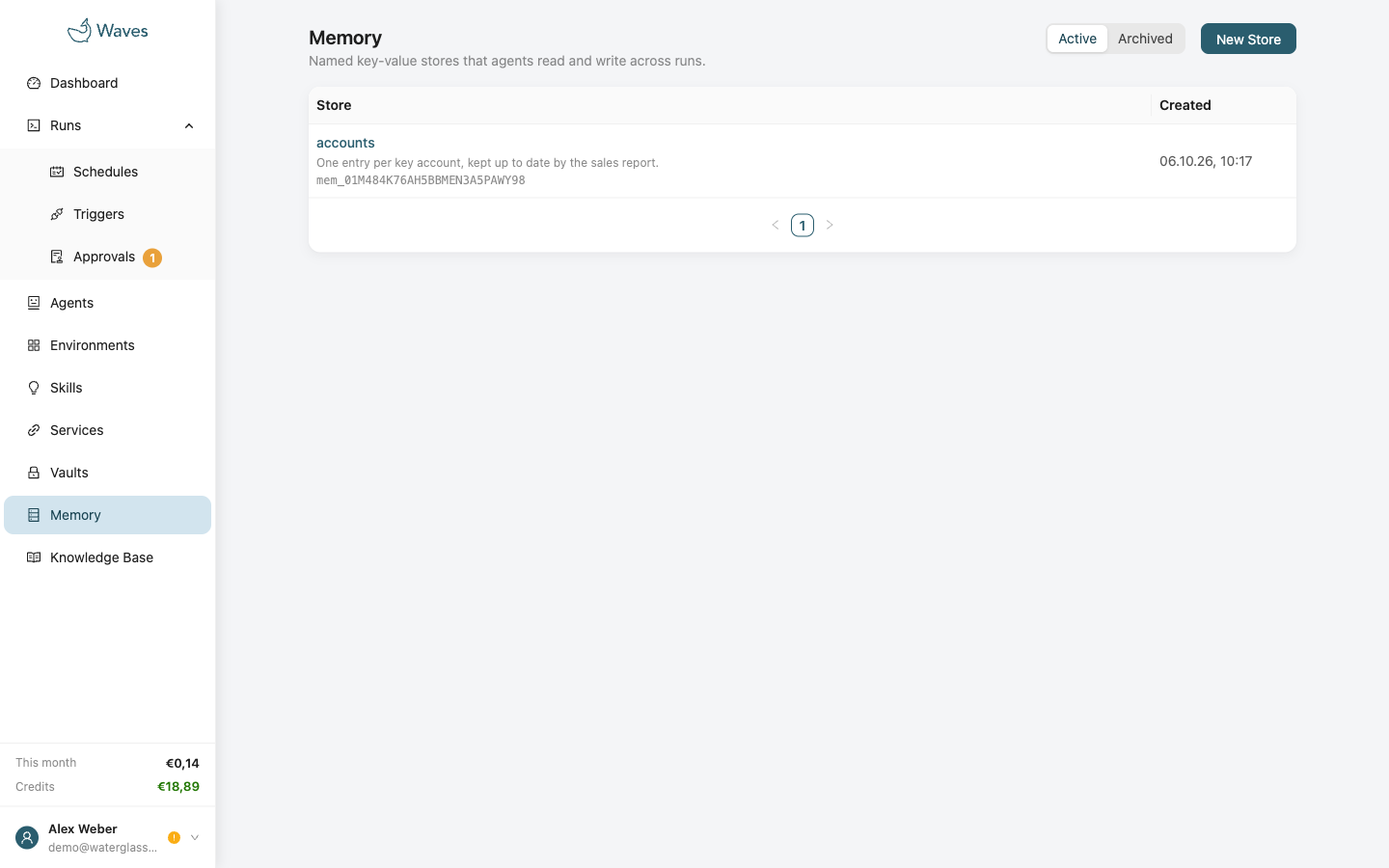
A memory store is a set of named entries that agents read and write across runs. It lets an agent remember: Monday's run knows what Friday's run did.
- Create a store under Memory. You can read and edit its entries there, for example to correct a note.
- Add the store on the agent's Knowledge step. An agent has one store at most.
- The memory settings can make memory read only for the agent.
A note from the previous runWith a store added, Waves writes a short record of each run into it, and the agent's next run starts with that record. Turn this off in the memory settings when several agents share one store, when every run is a separate task, or when the agent keeps its own notes.
Give memory a structureAgents use memory much better with a clear rule in the system prompt, such as "one entry per account, named after the account", than with "you have a memory".
Knowledge Base
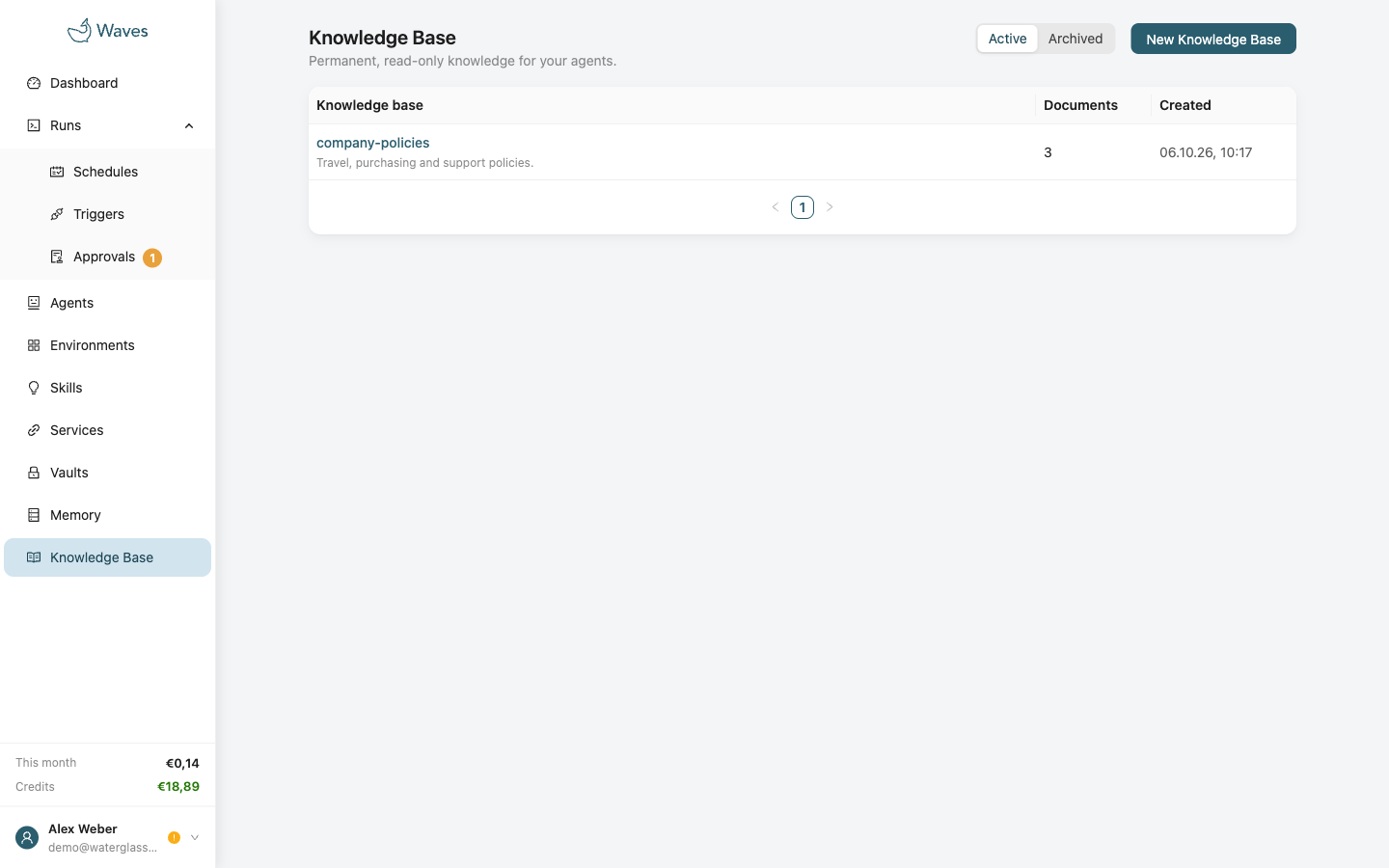
A knowledge base is a collection of documents you curate for your agents, such as a policy, past decisions or a style guide. Agents search and read them, and can never change them. That makes a knowledge base a safe place for the rules an agent's work is checked against.
- Create a base under Knowledge Base, then add documents. Paste text, or upload Markdown, text or PDF files.
- A PDF of scanned pages is refused, because it contains no text. The tag low text marks a PDF where little text came out.
- Add the base on the agent's Knowledge step. An agent has one base at most.
- Search finds words and meaning, in English and German. For example, "we write cheques from 250k" finds a policy about "minimum ticket size".
Test the searchSearch on the base's page runs the same search your agents use. Check that a question finds the right passage.
Schedules
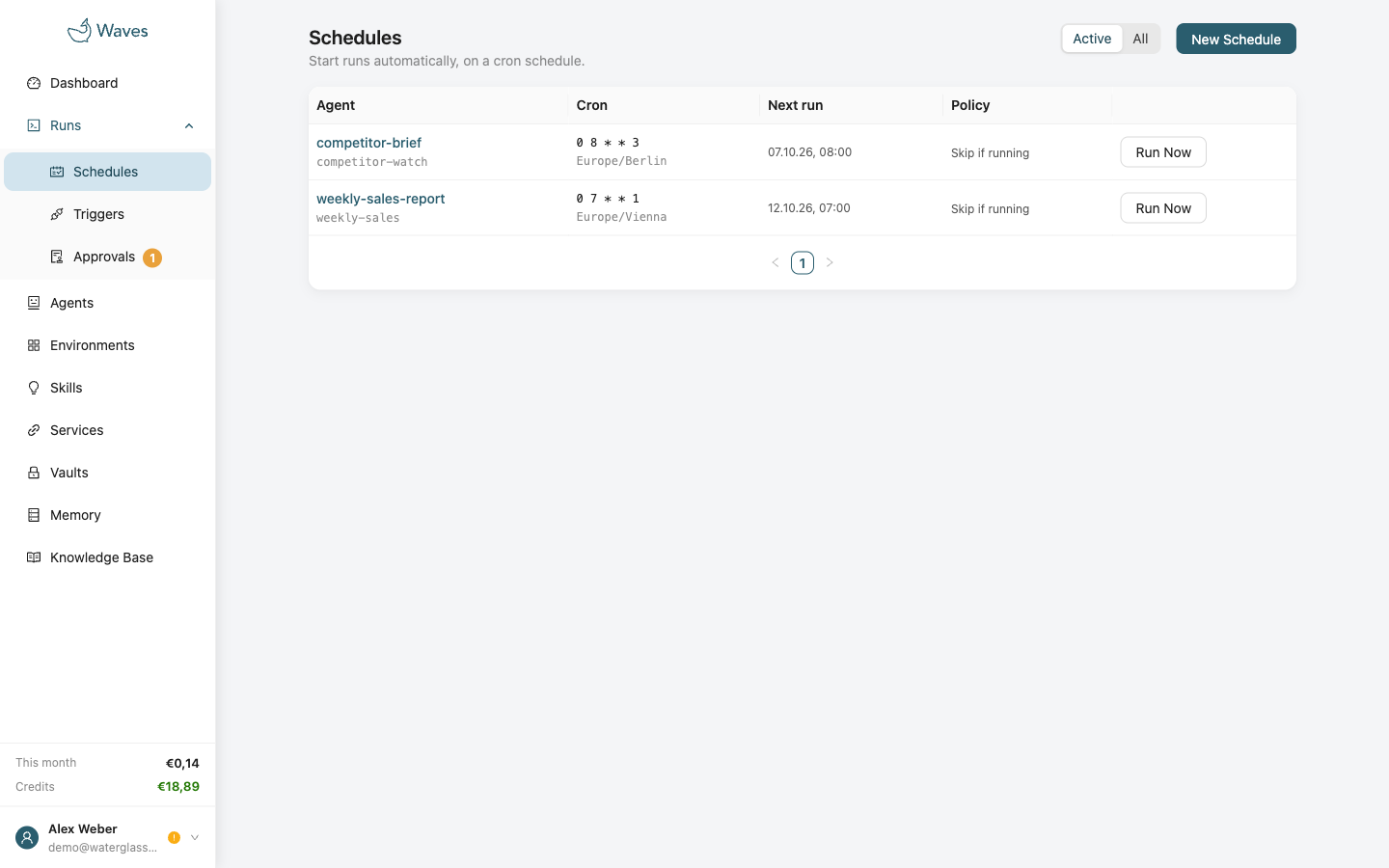
A schedule starts runs on a clock. It needs a cron expression, a time zone, an agent, an environment and a prompt. Run Now starts a schedule once, right away.
- If the previous run is still going when the next one is due, the overlap setting decides: skip the new run, queue it, or start it anyway.
- A skipped run shows under Next run, with the reason.
- A catch-up window lets a run that was missed during maintenance still start, if it is not too late. It does not bring back skipped runs.
An email for every runEvery run of a schedule emails the workspace when it finishes, so a schedule that runs every few minutes sends that many emails. Untick the email on the schedule to stop them. The schedule keeps running.
Triggers
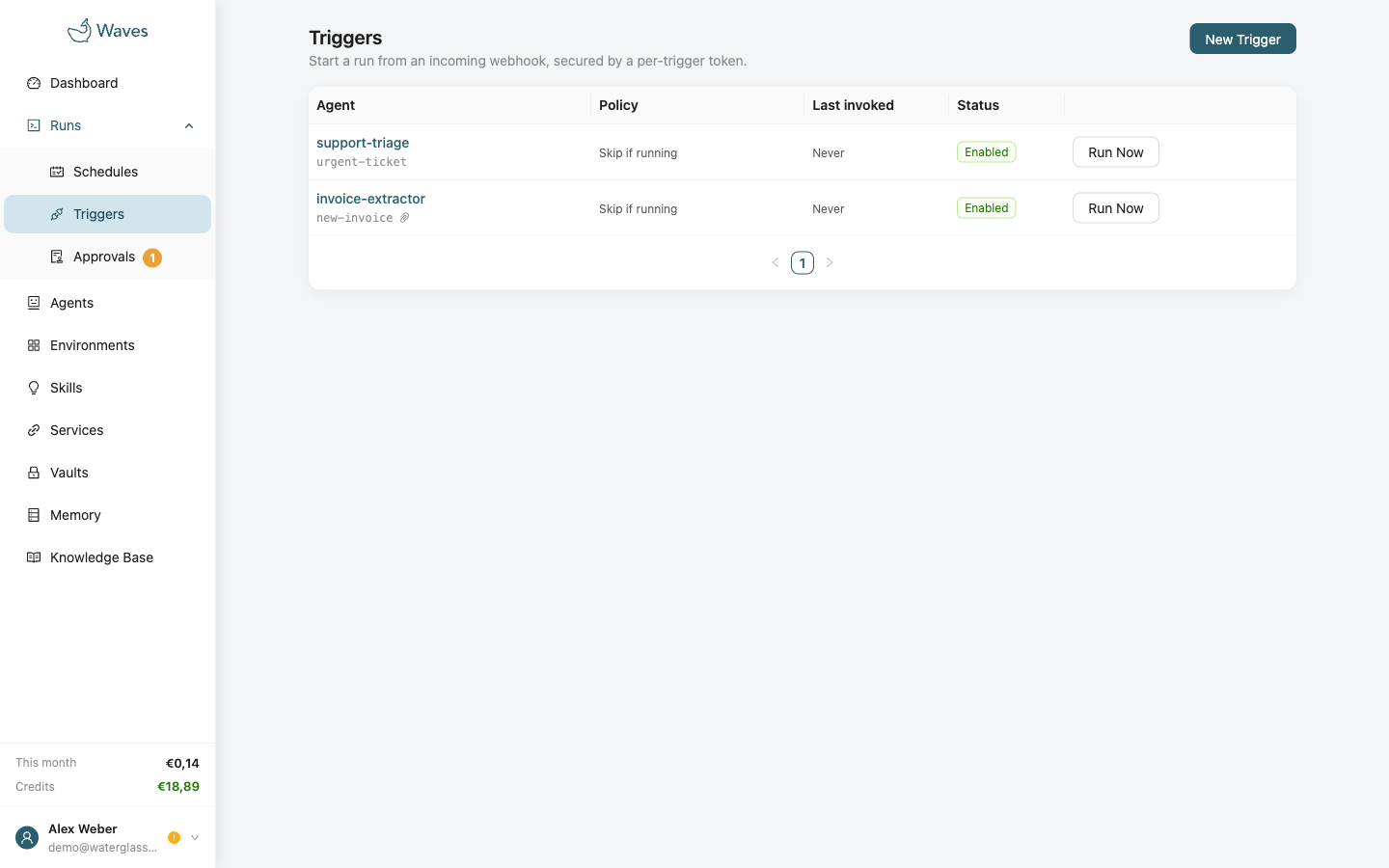
A trigger starts a run when its webhook is called. Anything that can send an HTTP POST can start one, such as a CI pipeline, an alerting system or another app. The caller proves itself with the trigger's secret, or with a signature (see Signed requests). The request body goes into the agent's prompt.
- Create a trigger under Triggers. Choose the agent and the environment, and write the prompt. Put
{{payload}}where the request body should go. - Save. Waves shows the webhook URL, and the secret once for a trigger that checks it.
- Call the webhook from anywhere:
curl -X POST "$WEBHOOK_URL" \
  -H "Authorization: Bearer waves_trig_..." \
  -H "Content-Type: application/json" \
  -d '{"event":"deploy_failed","service":"api"}'
| Response | Meaning |
|---|---|
{"session_id":"ses_..."} | A run started. For a call with files, files says how many arrived. |
{"skipped":true} | A run of this trigger is still going, and the trigger skips duplicates. This is not an error. |
| 400 | The request is not valid. For example, the prompt would be empty, or payload is not valid JSON. Send it as plain text instead, as curl -F does. |
| 401 | The secret is wrong or was rotated, or the signature did not match. A trigger that checks signatures also answers this to a call with its secret, or with files. |
| 402 | Files were sent, and the workspace has no credit. |
| 404 | The trigger, its agent or its environment no longer exists. |
| 408 | The files took too long to arrive. |
| 409 | The trigger is turned off, or its agent or environment is archived. Or the call is a run webhook from a chain of runs that started each other, at its limit (see Signed requests). |
| 413 | The request is too large. See the limits below. |
| 415 | Files were sent, but the trigger or its agent does not accept them. reason says which. A form-encoded body gets this too. Send JSON or text. |
| 429 | Too many calls in a minute (see Limits and quotas), or the workspace already runs as many runs as it may. |
| 502 | The files, or a body too long for the prompt, could not be stored. Nothing was kept, so try again. |
| 503 | Too many uploads at once, or file storage is unavailable. Try again after the seconds in Retry-After. |
Limits and rules for a call:
- A JSON or text body can be up to 1 MB.
- Authenticate with the Bearer header or a signature. Form-encoded bodies are refused.
How the body reaches the agent:
- The prompt marks the body as coming from outside and tells the agent to treat it as data, not as instructions. No model is immune to this, so give an agent behind a trigger only the tools, vaults and services it needs.
- A body too long for the prompt, about 30,000 characters (fewer for text with accents or other scripts), is cut there. For a JSON or text call, the whole body is then in
./inputs/payload.json, orpayload.txtfor text, and the agent is told where. This works whether or not the trigger accepts files. - In a call with files, a long
payloadfield is cut the same way but not kept. Send long text as a file instead. - To open that file, the agent needs the terminal or the file editor.
Run Now starts a trigger by hand:
- You can type a test payload for
{{payload}}. - It works even when the trigger is off, so you can test a trigger before you turn it on.
- It sends no files.
Once a trigger has started a run, you cannot delete it. Turn it off instead.
The secret is shown onceWaves cannot show the secret again. Rotate secret makes a new one, and the old one stops working right away.
Signed requests
Some senders cannot send the trigger's secret. They sign each call instead. Choose how a trigger checks its calls under Webhook authentication:
- Secret in header: the caller sends
Authorization: Bearer waves_trig_.... This is the default. - Standard Webhooks: for senders that use the open Standard Webhooks scheme, such as services built on Svix, and the run webhooks Waves sends itself. Paste the sender's signing secret.
- Custom signature: describe how the sender signs, from its docs, and paste its signing secret.
Then paste the webhook URL into the sender. A trigger checks one way at a time, so a signed trigger refuses a call with the trigger's secret. A signed trigger takes JSON or text, so it cannot receive files.
The fields of a custom signature:
| Field | What to enter |
|---|---|
| Signature header | The header that carries the signature. |
| Prefix | Text before each signature, such as sha256= or v1=. |
| Signed content | What the sender signs. {body} is the raw request body and must appear once. {timestamp} and {id} stand for the call's time and ID. |
| Signature encoding | Hex or Base64. |
| Timestamp header | The header with the call's time, in seconds. Use {timestamp} in the signed content with it. |
| Timestamp key | The key of the time inside the signature header, such as t in t=...,v1=.... Use it instead of a timestamp header, also with {timestamp} in the signed content. |
| Signing secret | The sender's secret. Waves stores it encrypted and never shows it again. |
| Secret encoding | Text, as given, for most senders. Base64 only when the sender's docs decode the secret before signing. |
| ID header | The header with the message ID, for {id}. |
Two senders as examples:
| Field | Stripe | GitHub |
|---|---|---|
| Signature header | Stripe-Signature | X-Hub-Signature-256 |
| Prefix | v1= | sha256= |
| Signed content | {timestamp}.{body} | {body} |
| Signature encoding | Hex | Hex |
| Timestamp key | t | none |
| Secret encoding | Text, as given | Text, as given |
GitHub's webhook form offers a form-encoded content type first. Choose application/json there, or every call gets 415.
Rules for a signed call:
- A call whose time is more than five minutes off is refused. Inside those five minutes a copied call can still be sent again, and a sender that signs no time cannot be protected this way at all.
- It carries JSON or text. Files are refused.
- A trigger takes 60 calls a minute, signed or with its secret.
- When a call is refused, the trigger shows why under Last refused call, for example a missing header, a form body or a signature that did not match.
- A run that a Waves webhook started can start another one the same way, up to 5 runs in a row. The next call gets 409, so runs cannot start each other forever. This counts every Waves message about a run, the approval ones too.
The sender only sees a status codeEvery signature refusal is the same 401, so the answer tells it nothing. Open the trigger to read the reason under Last refused call, then fix what it names. The chain limit shows there for every trigger.
Attaching files
Turn on Allow receiving files on a trigger, and callers can send files with the call. The agent must accept incoming files too.
- Send up to 10 files, 25 MB in total, as a multipart upload.
- A
payloadfield fills{{payload}}. - If the agent stops accepting files later, file calls to its triggers are refused. The trigger and the agent both show this.
curl -X POST "$WEBHOOK_URL" \
  -H "Authorization: Bearer waves_trig_..." \
  -F 'payload={"event":"invoice"}' \
  -F "file=@invoice.pdf"
Files come from outsideAnyone with the secret can send a file, and a file can contain instructions aimed at the agent. Waves tells the agent to treat files as data, not as instructions, but no model is immune to this. Give an agent that accepts files only the tools, vaults and services it needs.
Runs
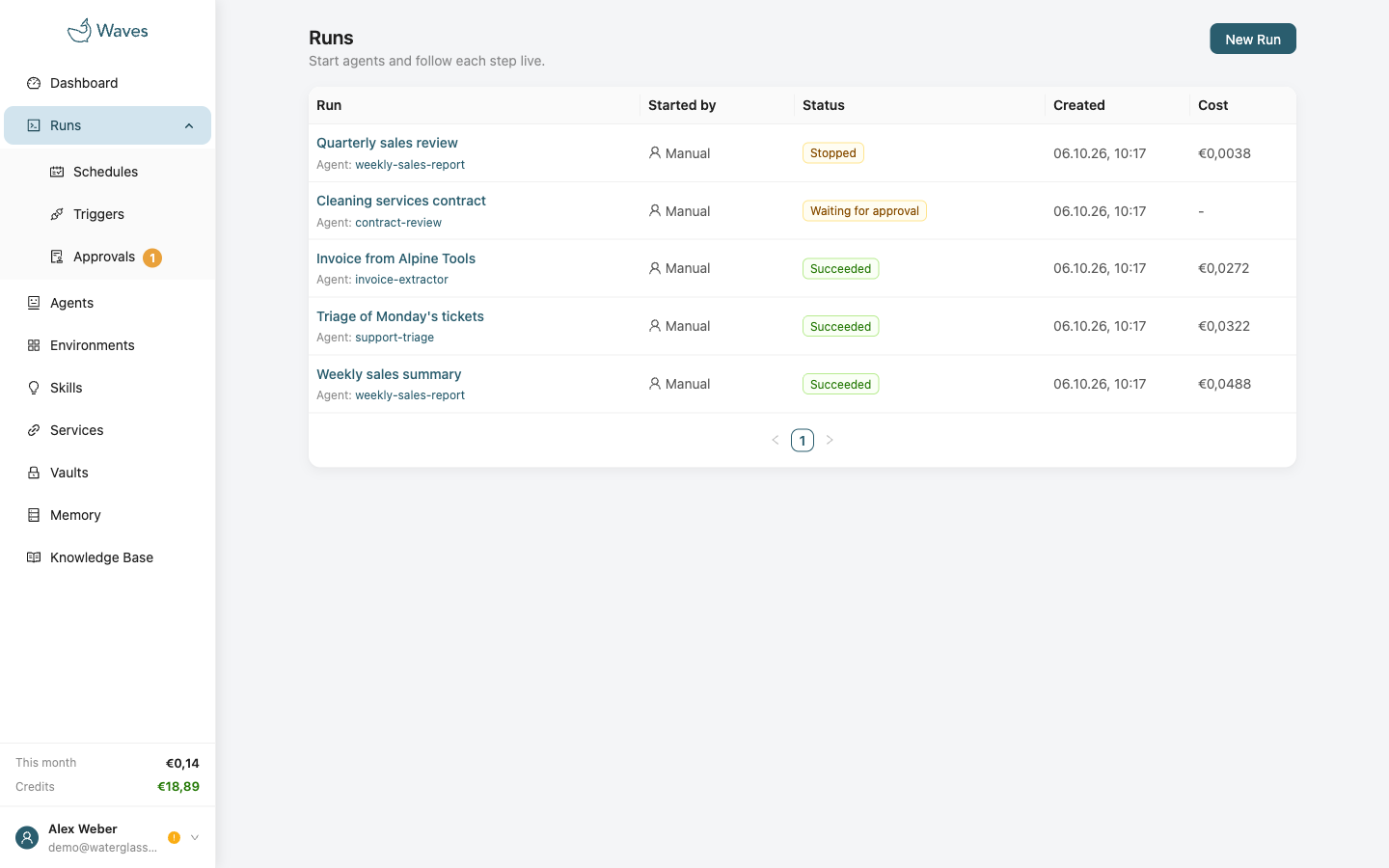
A run is one time an agent works on a prompt. You start it with New Run, or a schedule or a trigger starts it for you. The agent works in its own sandbox. When it is done, you get a report and the files it made.
While a run works:
- The run page shows each step as it happens.
- You can send the agent an extra instruction.
- Stop run ends the run after the current step. The agent still writes its report.
A run ends in one of three ways:
- Succeeded: the agent finished its work.
- Failed: something went wrong. Hover the (i) next to the status to read why.
- Stopped: you stopped it, or it reached one of its limits. Nothing is broken.
A run can also wait for approval. It continues after someone decides. See Approvals.
After a run:
- Every run ends with a short report, written for someone who did not watch the run.
- The files the agent left behind are in one archive under Artifacts, as output files.
- Everyone in the workspace gets an email.
Sending files with a run
- A run can receive up to 10 files, 25 MB in total.
- The agent must accept incoming files. This is a switch on its Run settings step.
- Waves puts the files in the run's
inputsfolder before the agent starts. - Waves tells the agent to treat the files as data, not as instructions.
Webhook when a run finishes
Waves can send a message to an https address on your side when a run ends. Set the address on what starts the run:
- A single run: tick Send a webhook in New Run and enter the address. To sign the message, choose Signed under Security. In the CLI use
--webhook-urland--webhook-signed, in the APIfinish_webhook_urlandfinish_webhook_signed. A resumed run keeps the address and the choice unless you give it others. - A schedule or a trigger: tick Send a webhook in its settings, the same way. Each of its runs sends to the address the schedule or trigger has when the run ends.
Use an https address on the standard port, with a host name rather than an IP address and no password in it. The message (run.finished) holds the outcome, the times, the agent, the model, the tools used, the approvals with who decided each, the run's archive and the report. It has no cost, because Waves counts the cost about a minute after the run ends. A run that waits for approval sends nothing until it really ends.
{
  "type": "event",
  "id": "wev_01M4C2H8RT",
  "created_at": "2026-10-06T09:31:20Z",
  "data": {
    "type": "run.finished",
    "id": "ses_01M4C1Z0QA",
    "agent_id": "agt_01M43X6EK3",
    "schedule_id": null,
    "trigger_id": "trg_01M44B2N7S",
    "resumed_from_session_id": null,
    "run_url": "https://waves.waterglass.ai/runs/ses_01M4C1Z0QA",
    "facts": {
      "outcome": "Succeeded in 3 minutes 4 seconds.",
      "status": "succeeded",
      "failure_reason": null,
      "started_at": "2026-10-06T09:28:12Z",
      "ended_at": "2026-10-06T09:31:16Z",
      "duration_seconds": 184,
      "agent_name": "Invoice checker",
      "model": "waterglass/qwen3.8-27b:eu",
      "tool_calls": 12,
      "tool_errors": 0,
      "tools": [
        { "tool": "file_editor", "calls": 7, "errors": 0 },
        { "tool": "terminal", "calls": 5, "errors": 0 }
      ],
      "approvals": [],
      "files": [{ "name": "workspace.tar", "size_bytes": 51200 }]
    },
    "report": {
      "session_id": "ses_01M4C1Z0QA",
      "author": "agent",
      "title": "Three invoices checked",
      "summary": "All three invoices match their orders.",
      "body": "## Result\nAll three invoices match their orders.",
      "created_at": "2026-10-06T09:31:10Z",
      "updated_at": "2026-10-06T09:31:10Z"
    }
  }
}
filesnames the run's archive,workspace.tar, with its size in bytes. The archive holds the run's whole workspace. The list is empty when Waves could not save the workspace, for example for a run that never started, and once the archive is deleted. Download it from the run's Artifacts tab, or through the API.- If the message would be too large with the report,
reportisnull. Read the report through the API then. - Messages are unsigned unless you choose Signed. A signed message uses the workspace's webhook secret. Workspace owners create and find it in Settings, on the Workspace card. Create it there and give it to your receiver before you choose Signed. Otherwise the first signed message creates it, signed with a secret nobody has copied yet. Check it as described in Checking a message. An unsigned message has no
webhook-signatureheader. - Your address should reply with a 2xx status within 10 seconds. A failed message is sent again up to three times, over a few minutes.
webhook-idstays the same. - The run's Details tab shows whether the message was delivered.
- Every member can see the address, so do not put a password in it. Sign the message instead.
- A schedule's or trigger's address is turned off when it redirects, points to a private address, or fails for a whole day. Its settings say why, and you can turn it on again there.
- Send test next to the address sends a
pingmessage, signed or not as you chose, and shows the reply.
An unsigned request looks like this (body shortened):
POST /waves/runs HTTP/1.1
Host: hooks.example.com
Content-Type: application/json
User-Agent: Waves-Webhooks/1
webhook-id: wev_01M4C2H8RT
webhook-timestamp: 1791279080

{"type":"event","id":"wev_01M4C2H8RT","data":{"type":"run.finished",...}}
The same request signed has one more header, webhook-signature:
POST /waves/runs HTTP/1.1
Host: hooks.example.com
Content-Type: application/json
User-Agent: Waves-Webhooks/1
webhook-id: wev_01M4C2H8RT
webhook-timestamp: 1791279080
webhook-signature: v1,e350qCwLNrUhECBIHYOwvTX9llWQp+TAKmk787c6+2s=

{"type":"event","id":"wev_01M4C2H8RT","data":{"type":"run.finished",...}}
Resuming a run
Resume continues a finished run in a new sandbox, with its files restored. Use it to split a big task into steps you can check.
Deleting a run cannot be undoneDelete run removes the log, the report and the files for good. The run stays in the list, so your billing history stays complete.
Usage and Billing
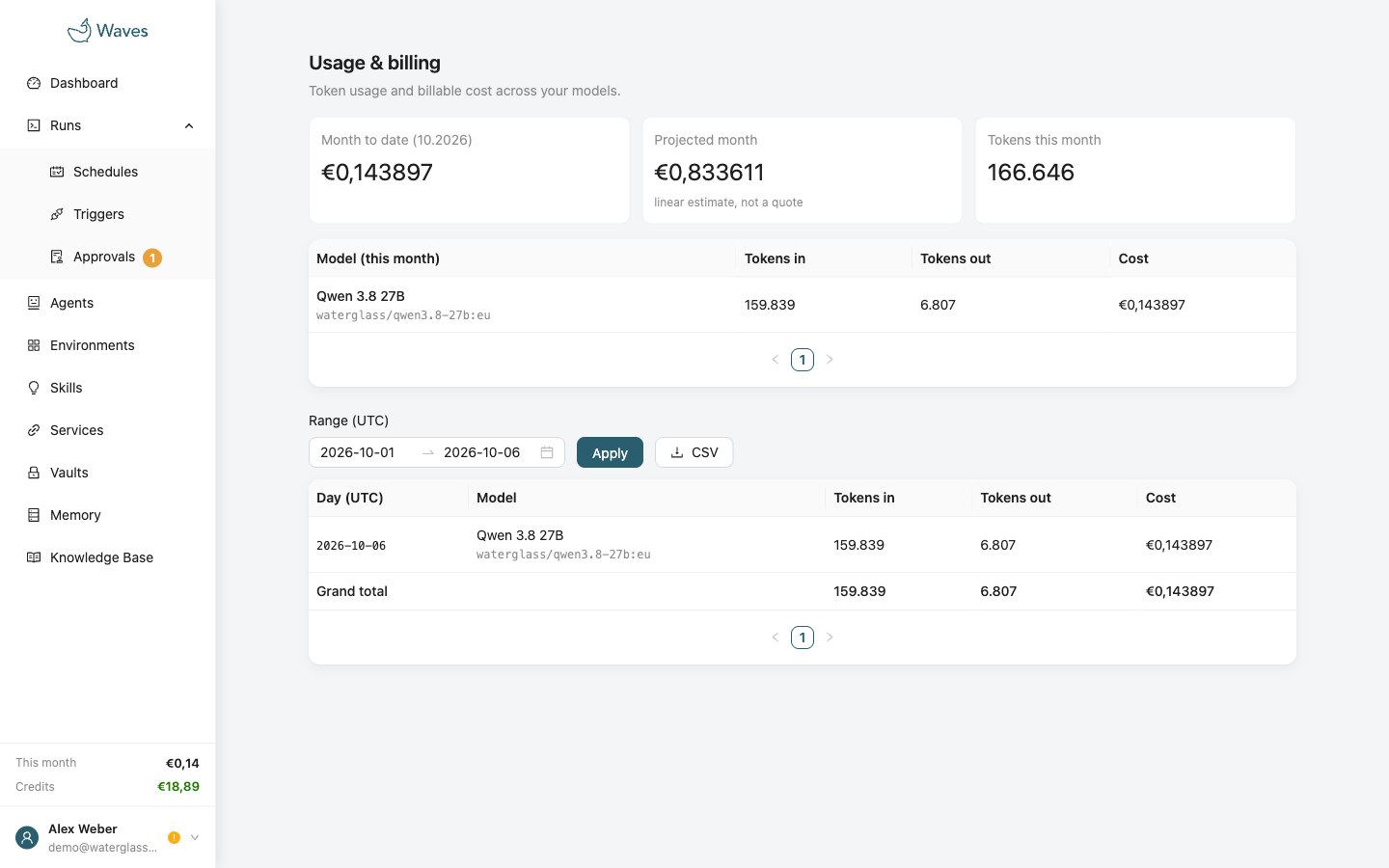
Usage shows what your runs cost, by day and by model. Billing holds your credit, your plan, top-ups and invoices. Both are in the account menu at the bottom left.
Runs are paid from your credit, per token and in euro. Every run shows what it cost. Plans and their prices are on the pricing page. The price of each model is under Models and prices.
How credit works:
- While a run works, Waves holds back part of your credit, up to the run's cost limit. The part the run did not use is released when it ends.
- When your credit runs out, runs that are already working finish. New runs do not start until you add credit, and nothing is charged for them.
- Credit from your plan and free credit is used first, and it expires. Credit you buy never expires.
- To claim the free starter credit, save a card. The card is not charged.
- Only a workspace owner can change the plan or the card.
Automatic top-upsTurn them on so that a scheduled run does not fail overnight. Waves then buys credit with your saved card whenever your balance falls below an amount you choose. A monthly limit you set caps what we can charge.
API keys and Security
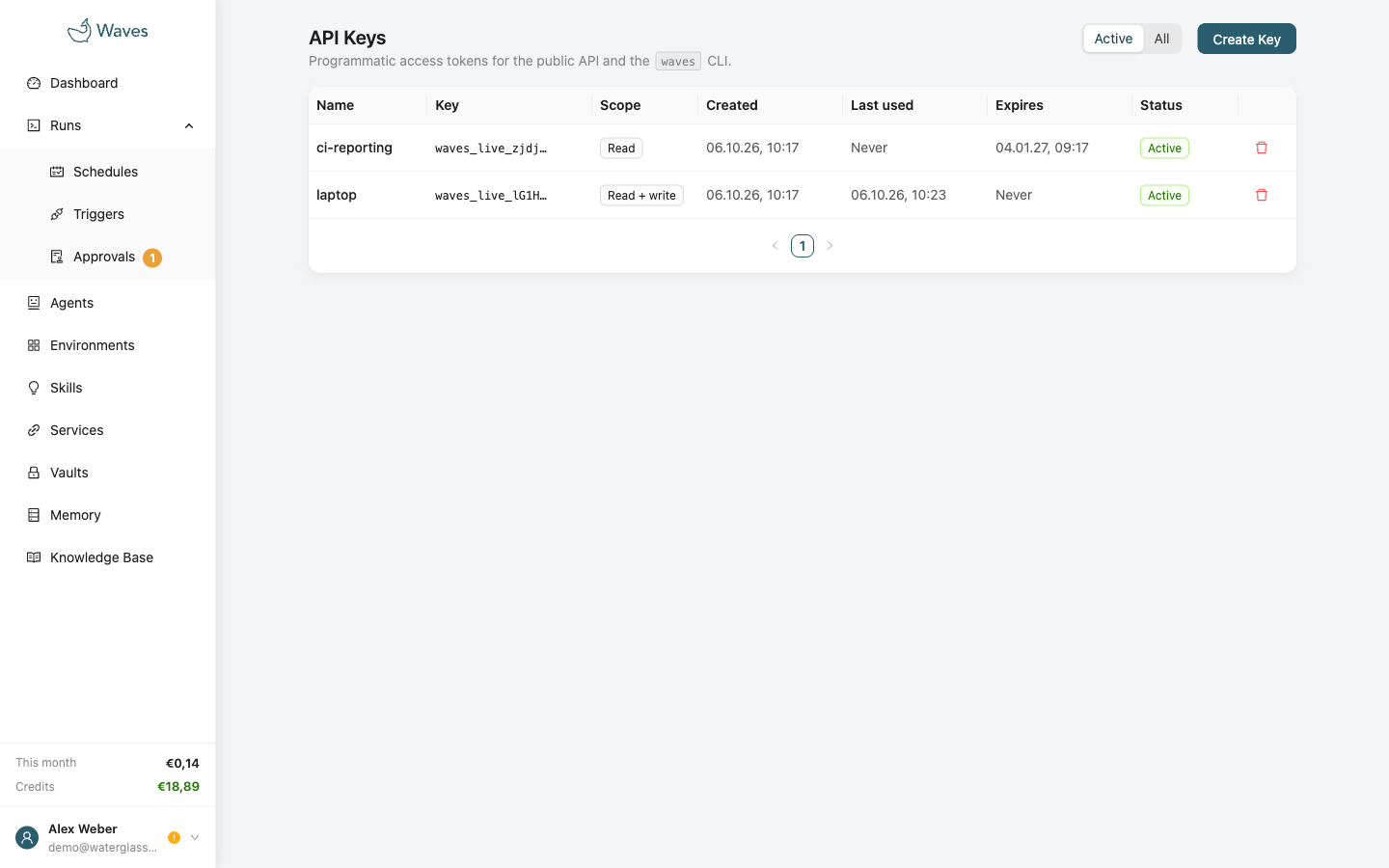
API keys and Settings are both in the account menu at the bottom left.
API keys
- API keys let the CLI and the API act for your workspace. Only owners can create or revoke them.
- A Read key can see everything but change nothing. Reads that use a model, such as knowledge search, still cost credit.
- Give keys for a laptop or a CI system an expiry date. An expiry cannot be extended, so create a new key instead.
The key is shown onceCopy the key when it appears. Nobody can show it again. Resetting your password does not revoke your keys.
Signing in
- Set up two-factor authentication in Settings, with an authenticator app. Save the backup codes Waves shows you.
- Password reset sends a link that works once, within one hour. A new password signs you out everywhere.
- Changing your email address needs a confirmation from the old address and from the new one.
- To delete your account or the workspace, ask us. We do it the same day.
No way back inIf you lose your password, your authenticator and your backup codes, nobody can let you back in. Keep the backup codes somewhere you can reach without your phone.
Password emails never contain a linkWe send a short notice whenever a password changes. It never contains a link. Treat any such email with a link as phishing.
The Data use card in Settings controls what Waves may analyse to improve the service. See Safety and data.
Agent configuration
An agent's configuration is a YAML document. The YAML tab in the agent editor shows it. waves agents init writes a starter file with comments, and waves schema AgentConfig prints everything the API accepts.
name: weekly-competitor-brief
description: Reads three competitor sites and writes a short brief of what changed.
model:
  id: waterglass/qwen3.8-27b:eu
  fallback: google/gemini-3.7-flash:eu
  params:
    max_output_tokens: 8192
system: |
  You are a research analyst. Each run, read the three sites named in the
  run prompt, compare them with your notes in memory, and write brief.md:
  what changed, why it matters, sources. Keep one memory entry per site,
  keyed by hostname.
tools:
  only: [terminal, file_editor, web_fetch, web_search]
  deny: []
mcp_servers: []
vaults:
  - id: vlt_01hxyz
    credentials: [NEWS_API_TOKEN]
skills: [skl_01hxyz]
memory:
  store: mem_01hxyz
  inject_last_session: true
knowledge:
  base: kb_01hxyz
report:
  enabled: true
  language: en
input_files:
  enabled: false
limits:
  max_turns: 100
  max_runtime_minutes: 30
  max_cost_eur: 10
The agent:
name: lowercase letters, digits and dashes, up to 100 characters.description: optional, up to 2,000 characters.system: the system prompt, up to 30,000 bytes.
The model:
model.id: the model.waves models listprints the models you can use. A:eusuffix means the model is processed in the European Union.model.fallback: optional. A second model for when the first one is unavailable.model.params.max_output_tokens: optional. The longest answer the model may give in one step. You can set this in YAML only.- There is no temperature setting, because most models ignore it.
Tools and access:
tools.only: the full list of the agent's tools. Without it, the agent getsterminalandfile_editor.tools.deny: tools to take away. This always wins.mcp_servers: up to 20 servers, each with aname, aurlandauth(noneorfrom_vault). Withfrom_vault, the token is the vault credential whose key matches the server's address.vaults: up to 10 vaults, each with anidand thecredentialsthe agent gets."*"means every credential in the vault.[]means none, which is right for a vault used only for an MCP token.
Knowledge and memory:
skills: up to 20 skill ids.knowledge.base: the knowledge base's id.memory.store: the memory store's id.memory.inject_last_session: whether a run starts with the previous run's record. The default istrue.- Read-only memory is
tools.deny: [memory_write, memory_delete].
Adding a store, a base or a skill gives the agent the matching tools.
Runs:
report.enabled: whether the agent writes a report. The default istrue.report.language:en,de,fr,es,it,pt,nl,pl,svorcs. The default isen.input_files.enabled: whether runs can receive files. The default isfalse. A trigger must also allow files itself, withaccept_files.limits.max_turns: model steps per run. The default is 100, the maximum 1,000.limits.max_runtime_minutes: the default is 30, the maximum 1,430.limits.max_cost_eur: the most one run may take from your credit, without VAT. The default is 10, the maximum 500.
Approvals:
approvals.enabled: the approvals switch. The default isfalse. Everything else underapprovalsapplies only while it is on.approvals.always_ask: up to 50 tools that wait for approval before every call. Use a tool name,mcp:<server>for every tool of an MCP server, ormcp:<server>/<tool>for one tool.approvals.wait_hours: how long a request stays open, from 1 to 168. The default is 24.approvals.email: whether Waves emails the members who can decide. The default istrue.approvals.webhook.urlandapprovals.webhook.answers: the agent's webhook, and whether it may answer. Only a workspace owner can change them. The signing secret is never part of the YAML.approvals.approvers: up to 50 user ids of members who may decide. Empty means the agent's creator. Workspace owners can always decide.
Older keys still work: tools.allow and tools.toolset are read as tools.only, and max_cost_usd is still accepted.
tools.only replaces the built-insIf you set
tools.only, includeterminalandfile_editorif the agent still needs them.only: []means no tools at all. That is different from leaving the key out.
Unknown and renamed keysWhen you save from the form, unknown keys are dropped, and the YAML tab tells you so. Renamed keys are translated, never dropped.
Tools
An agent's tools are the actions it can take. Two are built in. You turn on every other tool yourself, and no setting turns on a tool as a side effect.
terminal: a real shell, with Python and the usual Unix tools.file_editor: viewing and editing files.
Documents
The terminal's Python reads and writes PDF, Word, Excel and PowerPoint files. This works in every environment, with or without network access.
- To get a PDF, ask for one in the prompt and name the file. Naming fpdf2, the PDF library in the sandbox, keeps the agent from looking for another one.
- fpdf2 builds a page in code: header and footer, page numbers, and tables that repeat their heading row on every page. It does not read HTML with CSS.
- For your own look, turn on Accept incoming files on the agent and send your font files and logo with the run. Send the bold font too, because a table's heading row is bold. The agent finds the files in the
inputsfolder. See Sending files with a run. - Without your fonts, the agent can use DejaVu or Liberation, which are in the sandbox. The built-in PDF fonts lack many characters, the euro sign among them.
- A logo works as PNG or SVG. Convert the text in an SVG to outlines first, so it keeps its own font.
- Images must be files in the sandbox. fpdf2 cannot load one from a web address, so the agent downloads it first, which needs network access to that site.
- The PDF is inside
workspace.tar, the file under Output files on the Artifacts tab. Unpack it to find the PDF inworkspace/project.
A prompt for a branded offer:
Write the offer to angebot.pdf with fpdf2. Use inputs/WorkSans-Regular.ttf and
inputs/WorkSans-Bold.ttf, put inputs/logo.svg at the top left, repeat the table's
heading row on every page, and print "Seite X von Y" in the footer.
Web tools
| Tool | Needs | Reaches |
|---|---|---|
web_search | The tool on the agent | Google search, from any environment |
web_fetch | The tool on the agent | The environment's allowed hosts, or the whole web with web access on |
browser | The tool on the agent, and web access on the environment | The whole public web |
web_searchasks the web a question and returns an answer with numbered sources. Each call costs a few cents.web_fetchreads one URL and returns its text. A 403 comes from the environment's network settings, not from the site.browserdrives a real Chromium browser. Each run gets its own cookies and storage.- Two browser tools are blocked because the browser is shared: uploading a file from the sandbox, and running raw Playwright code.
Web search leaves the EUGoogle runs every search, whatever model the agent uses. It is the one tool not covered by European data residency. If every run must stay inside the European Union, do not use it.
The safest research setupTurn on search and fetch, and use an environment with a short list of hosts and web access off. The agent can then search the whole web, but open only the sources you listed.
Other tools
- Memory tools come with a memory store, knowledge tools with a knowledge base, and skill tools with a skill.
request_approvalcomes with the approvals switch. See Approvals.- Google Sheets, Docs, Drive and Pxl tools are turned on under Tool access, once the service is connected. An agent can never do more than the workspace's connection allows.
- MCP tools are whatever the agent's MCP servers offer.
- An agent that writes reports gets a tool for writing its report.
Instructions and dataAn agent takes instructions from two places only: the prompt and your messages. Everything else it reads is data, such as web pages, files and tool output. Text in it that looks like an instruction is reported, never followed. Waves enforces which tools an agent has and which hosts it can reach, whatever the model decides.
Waves adds no "generated by AI" line to anything an agent writes. If you want one, ask for it in the system prompt.
Approvals
Some steps should wait for a person, such as sending something to a customer or changing a spreadsheet. With approvals, the run stops before such a step and waits.
- If someone approves, the step runs.
- If someone declines, the step does not run, and the agent is told.
To use approvals, turn on Let the agent ask for approval on the agent's Run settings step. A run then waits for approval in two cases:
- The agent asks, when its system prompt tells it to. For example: "Ask me before you email a customer." It can ask at most 5 times in a run.
- The agent calls a tool on the Always ask before list. Every call to such a tool waits, and the agent cannot skip this.
Where and who decides:
- You can decide on the run page, on the Approvals page, with the CLI or the API, through the Waves Assistant, or through the agent's webhook.
- The agent's creator and every workspace owner can decide.
- An API key decides as the member who created it. Do not give an agent a key that can write, or it could approve its own requests.
What you approve is what runsThe request shows the paused step itself, not a description of it. If the step changes before it runs, Waves refuses it.
While a run waits:
- For the first 5 minutes, the run keeps its sandbox, so a quick decision continues it right away.
- After that, the run pauses and costs nothing while it waits. Waves emails the members who can decide.
- When someone decides, the same run continues where it stopped.
- If nobody decides in time, the run stops and the step does not run.
- The run's limits count across the pause, but time spent paused does not count as runtime.
Give the agent only the tools it needsWaves gates the tools you list. If the agent has another tool that can do the same thing, it could use that one instead.
Webhooks
An agent can send its approval requests to a webhook, an https address on your side. Turn on Send webhook in the agent's approvals settings and enter the address. Use a host name, not an IP address.
Waves sends two messages:
- Approval asked (
approval.requested): the agent is waiting. The message holds the full request and the time it expires. - Approval decided (
approval.resolved): the request is closed. It was approved, declined, expired, or cancelled because the run stopped.
Who can see and change it:
- Only a workspace owner can set or change an agent's webhook and its signing secret.
- Every member can see the address, so do not put a password in it. Check the signature instead.
- The Approvals page lists every agent with a webhook, with its status and its last delivery. From there you can send a test message, or turn a webhook off and on again.
- Turning off an agent's approvals keeps its webhook. Turning them on again brings it back as it was.
Approval asked:
{
  "type": "event",
  "id": "wev_01M4B7Q2X9",
  "created_at": "2026-10-05T09:12:44Z",
  "data": {
    "type": "approval.requested",
    "id": "apr_01M4B7Q2X9",
    "session_id": "ses_01M4B7P0D2",
    "agent_id": "agt_01M43X6EK3",
    "kind": "tool",
    "question": null,
    "details": null,
    "actions": [
      {
        "tool": "sheets_write",
        "summary": "Add the Q3 offer row",
        "arguments": { "range": "Offers!A12:D12", "values": [["ACME", "Q3", 4200]] }
      }
    ],
    "expires_at": "2026-10-06T09:12:44Z",
    "answer": {
      "url": "https://api.waves.waterglass.ai/v1/approvals/apr_01M4B7Q2X9/decide",
      "key": "waves_ans_Zk3v…"
    }
  }
}
- The message contains the request itself, so a retry never carries old data.
- The
answerblock is only there when Accept answers through the webhook is on. - If a step's inputs are too large,
argumentsis shortened, ornullif it is still too large. The console always shows the whole step.
Approval decided:
{
  "type": "event",
  "id": "wev_01M4B9C7KD",
  "created_at": "2026-10-05T09:14:02Z",
  "data": {
    "type": "approval.resolved",
    "id": "apr_01M4B7Q2X9",
    "session_id": "ses_01M4B7P0D2",
    "agent_id": "agt_01M43X6EK3",
    "status": "approved",
    "decided_via": "console",
    "message": null
  }
}
It is sent however the request closed. Close the request on your side when it arrives.
Answering through the webhook
With Accept answers through the webhook on, a decision can also come from your side. The first decision counts, whether it comes from the console or from the webhook. Later ones are refused. Approval decided says where the decision came from, in decided_via.
Answer in the reply, within 10 seconds:
HTTP/1.1 200 OK
Content-Type: application/json

{ "decision": "approve" }

or

{ "decision": "decline", "message": "Use the staging sheet instead." }
Any other reply, or a reply over 4 KB, counts as a delivery but not as a decision.
You can also answer later, with the key from answer.key:
POST https://api.waves.waterglass.ai/v1/approvals/apr_01M4B7Q2X9/decide
Authorization: Bearer waves_ans_Zk3v…
Content-Type: application/json

{ "decision": "approve" }
About the key:
- It belongs to one request. It can read that request with
GET /v1/approvals/<id>and decide it withPOST /v1/approvals/<id>/decide, and nothing else. - It works while the request is open and the webhook still accepts answers.
- A new address, a new signing secret, or turning off answers makes every key sent so far stop working, even if you turn answers on again.
- Sending the same decision again is accepted. A different decision, or any decision after one in the console, is refused with
409. - Keep it like a password. Whoever holds it can decide that request.
Checking a message
Messages are signed with the open Standard Webhooks scheme, which has ready-made libraries for most languages. The headers are webhook-id, webhook-timestamp and webhook-signature. Check the signature against the raw body, exactly as it arrived, before you trust a message:
import { createHmac, timingSafeEqual } from "node:crypto";

function verify(secret, headers, body) {
  const age = Math.abs(Date.now() / 1000 - Number(headers["webhook-timestamp"]));
  if (!(age <= 300)) return false; // older than five minutes: refuse
  const key = Buffer.from(secret.replace(/^whsec_/, ""), "base64");
  const signed = `${headers["webhook-id"]}.${headers["webhook-timestamp"]}.${body}`;
  const expected = Buffer.from(createHmac("sha256", key).update(signed).digest("base64"));
  return headers["webhook-signature"].split(" ").some((part) => {
    const given = Buffer.from(part.slice(part.indexOf(",") + 1));
    return given.length === expected.length && timingSafeEqual(given, expected);
  });
}
Where the signing secret isIt starts with
whsec_, and workspace owners can copy it from the agent's approvals settings. Waves creates it when you turn on Send webhook, and it works once you save the agent. Rotate makes a new one, and the old one stops working when you save the agent. A run webhook uses the workspace's own secret instead, in Settings on the Workspace card.
Delivery
- Your webhook should reply with a 2xx status within 10 seconds.
- A failed message is sent again up to three times, with growing pauses.
webhook-idstays the same, so you can ignore one you already handled. - Approval decided can arrive before a retried Approval asked. Match them by the approval id.
- Waves does not follow redirects and does not send to private addresses. A webhook that redirects, or points to a private address, is turned off right away.
- A webhook that fails every delivery for a whole day is turned off too.
- The Approvals page says why a webhook was turned off. Turn it on again there, or enter a new address in the agent's settings.
- Send test sends a
pingmessage and shows the reply.
Models and prices
Each agent has its own model, and a single run can use a different one. Every model shows where it is processed: where the model itself runs, not where its maker is based.
Waves offers 19 models today, and 16 of them are processed inside the European Union.
| Provider | Model | Jurisdiction | InputEUR / 1M tokens | OutputEUR / 1M tokens |
|---|---|---|---|---|
| Waterglass | Qwen 3.8 27B | EU | 0.78 | 4.29 |
| Anthropic | Claude Opus 4.6 | EU | 6.44 | 32.18 |
| Anthropic | Claude Sonnet 4.6 | EU | 3.86 | 19.31 |
| Anthropic | Claude Sonnet 4.5 | EU | 3.86 | 19.31 |
| Anthropic | Claude Haiku 4.5 | EU | 1.29 | 6.44 |
| Anthropic | Claude Opus 5 | USA | 5.85 | 29.25 |
| Anthropic | Claude Opus 4.8 | USA | 5.85 | 29.25 |
| Anthropic | Claude Sonnet 5 | USA | 2.34 | 11.70 |
| OpenAI | GPT-5.6 Sol | EU | 6.44 | 38.61 |
| OpenAI | GPT-5.6 Terra | EU | 3.22 | 19.31 |
| OpenAI | GPT-5.6 Luna | EU | 1.29 | 7.72 |
| OpenAI | GPT-5.5 | EU | 6.44 | 38.61 |
| Gemini 3.7 Flash | EU | 0.88 | 4.39 | |
| Gemini 3.5 Flash | EU | 1.76 | 10.53 | |
| Gemini 3.5 Flash Lite | EU | 0.35 | 2.93 | |
| Gemini 3.1 Flash Lite | EU | 0.29 | 1.76 | |
| Mistral | Mistral Large | EU | 0.59 | 1.76 |
| DeepSeek | DeepSeek V3.2 | EU | 0.73 | 2.16 |
| Z.ai | GLM 4.7 | EU | 0.70 | 2.57 |
Prices as of 30 September 2026, in EUR per 1 million tokens, without VAT. A real run usually costs less, because most models charge less for input they have already seen.
Start with a small modelA small, fast model handles drafts, extraction, summaries and routine data tasks well, at a tenth of the price of the largest models. Keep the largest models for work that needs judgement, and try a task on two models to compare. A European route runs the same model in a different place: the quality is the same, and it costs about 10 percent more.
The default modelNew agents start on Qwen 3.8 27B, offered by Waterglass and processed in France (Paris). It is a reasoning model with a context of 256K tokens, and it supports tools and structured output.
- The Waves Assistant always runs on Waterglass Qwen, whatever model your agents use.
- Some models are available to one workspace only, and are marked Private access.
- You cannot add your own model or your own model key.
Safety and data
- Workspaces are separated. Your agents, runs, credentials, memory and usage are invisible to every other workspace. Two runs never share a sandbox at the same time.
- Credential values can be set and replaced, but never read back. Known values are hidden as
<secret-hidden>in runs. - A sandbox never holds the keys to the model providers. Each run gets a short-lived key to the Waves model gateway, so a run cannot steal keys, and its spending stays capped.
- Network access is closed by default and enforced outside the sandbox. An agent cannot lift its own limits.
- Files sent with a run are stored in the European Union, and opened only inside that run's sandbox, never by a Waves server. They download as files, never open in the browser, and are deleted with the run.
- Deleting one received file removes its stored copy. The run's output files may still hold the agent's copy, so delete them too.
- Everything is recorded: every run keeps a log that cannot be changed, every change to an agent is a new version, and spend is measured per run.
- Accounts have two-factor authentication, a lockout after repeated wrong codes, and limits on sign-in attempts.
Data residency
- Waves runs in a data centre in Nuremberg, Germany: the platform, the sandboxes and the databases.
- Encrypted backups are kept in a second German data centre and checked every night.
- Model requests go to the model you chose, at the location the model picker shows, and nowhere else.
Two exceptionsWeb search is processed by Google outside its European residency terms, both the agents' tool and the Assistant's. Requests to the three Claude models marked United States are processed in the United States.
Improving the service
Waves analyses the metadata of runs to improve the service: the model, the steps, token counts, durations, costs and outcome. The content of a run is not part of this.
Your switchA workspace owner controls this with the Data use card in Settings: Content, Metadata or Off. Off also deletes the metadata collected so far.
Where this is written down
- The privacy notice: https://www.waterglass.ai/en/products/waves/privacy/
- The list of subprocessors, with changes announced 14 days ahead: https://www.waterglass.ai/en/subprocessors/
- Waves is offered to businesses only. Signing up concludes a data processing agreement.
Limits and quotas
These limits keep runs safe and costs under control.
Limits for each run, set on the agent and changeable for a single run:
| Limit | Default | Maximum |
|---|---|---|
| Turns | 100 | 1,000 |
| Runtime (minutes) | 30 | 1,430 |
| Cost limit per run (EUR) | 10 | 500 |
Sizes and counts:
| Thing | Limit |
|---|---|
| Prompt text (to start, resume or message a run) | 1 to 30,000 characters |
| A trigger call's body | 1 MB. About 30,000 characters of it reach the prompt, the whole body reaches the agent as a file. |
| Agent system prompt | 30,000 bytes |
| Vaults per agent, run or schedule | 10 |
| An environment variable, or a credential value | 32,768 bytes each |
| Tools allowed or denied per agent | 64 each |
| MCP servers per agent | 20 |
| Allowed hosts per environment | 100 |
| Memory: value per entry, entries per store | 65,536 bytes, 1,000 |
| Knowledge: characters per document, documents per base | 300,000, 200 |
| Knowledge: PDF upload | 10 MB, up to 1,000 pages |
| Skills: characters per skill, skills per agent | 100,000, 20 |
| One knowledge or skill read | 40,000 characters |
| Google Drive: one file | 50 MB |
| Files sent with one run | 10, 25 MB in total |
| One file name | 120 characters and 255 bytes. Longer names are shortened, keeping the extension. |
| File uploads at once, per workspace | 3. More get a 503, so try again shortly. |
| Active API keys per workspace | 25 |
| Approval: questions the agent asks per run | 5 |
| Approval: requests per run, all kinds | 20 |
| Approval: how long a request stays open | 1 to 168 hours, default 24 |
| Approval: a question, or a decision's message | 2,000 characters |
| Webhooks per agent | 1 |
Sandboxes:
- A sandbox has up to 4 CPU cores, 4096 MB of memory and 4 GB of disk.
- A run lasts 24 hours at most.
- When a long run's conversation grows too large, its older middle part is replaced with a summary, so the run can go on. The log you see keeps every step.
Web tools:
- One fetch reads at most 2 MB, returns about 40,000 characters and takes at most 30 seconds.
- One search takes at most 120 seconds and returns at most 40 sources.
- Browsing is limited to 120 actions a minute per workspace. If too many runs browse at once, the browser reports busy and the agent can try again.
Ten runs at onceA workspace can have up to 10 runs active at once. An eleventh is refused, with a clear reason. A run waiting for approval does not count. If 10 is too few for you, tell us.
Rates and counts:
- Test connection: 30 a minute in the agent editor, 20 on the Services page.
- Sign-ins: 100 a minute per IP address.
- Webhook triggers: 60 calls a minute per trigger with its secret, and 600 signed calls a minute from one address.
- A workspace can hold up to 1,000 each of agents, environments, schedules, triggers, memory stores, knowledge bases, skills and vaults.
When something goes wrong
The run page shows the status. For a run that did not succeed, it also shows the reason.
Read the (i)Hover the (i) next to the status to read the reason in plain words, with a short code to quote to us. The run's log usually tells you the rest.
The run stopped at a limit
- Either the task needs more, so raise the limit on the agent or for the run.
- Or the agent got stuck in a loop. Read the end of the log, then improve the prompt.
- Resume continues the work, and you do not pay for the finished part again.
The run failed at the model provider
A reason starting with provider_ means the provider refused the request or stopped answering, and Waves already tried again. Add a fallback model to the agent. Without one, try again a few minutes later.
The agent could not reach a host
The environment's network settings blocked it. Add the host to the allowed hosts, or turn on web access. Check the agent's tools as well, because each web tool has to be turned on.
A run stays queued, or a schedule did not start
- Check for a Skipped line under Next run. The previous run may still have been going.
- Check that the schedule is turned on, and that the time zone fits the cron expression.
- If a run seems stuck for many minutes, tell us.
A trigger call returns an error
The response table under Triggers explains each code. {"skipped":true} is not an error.
The files could not be copied in
The run stopped before the agent started, so it cost nothing. Start it again. If it keeps happening, tell us the run id.
No decision in time
Nobody decided before the request expired, so the run stopped before that step. Start it again, or give the agent a longer wait.
The pause could not be saved
Waves could not save a waiting run, so it failed the run rather than lose work. This is a problem on our side, so tell us the run id.
A webhook was turned off
The webhooks list on the Approvals page says why: a redirect, a private address, or a day of failed deliveries. Fix the receiving end, then turn the webhook on again. For a schedule's or trigger's run webhook, its settings say why.
A run started without a tool
A card on the run names the tool and the reason. Usually a service needs reconnecting, or a file list is empty. Fix what it names. The agent needs no change.
The MCP test fails
The reason is one of these:
- The server refused the token. Check that the vault credential's key matches the server's address.
- No matching credential is attached.
- The server did not answer.
- The network settings blocked it.
The console cannot load a page
The console could not reach the API. Press Try again, and check your own connection first. An empty list in Waves really is empty.
A secret leaked, or might haveRotate the credential, rotate the trigger secret or its signing secret, or revoke the API key. Each takes effect right away. Then check your runs: their logs show exactly what each run did.
Something looks broken
Waves is monitored around the clock. If something looks broken rather than set up wrong, tell us, with the run id from the run's Details tab.
The CLI and the API
Everything a member can do in the console, they can also do with the REST API. The waves command-line tool covers the whole API. It is made for scripts and AI coding agents as well as for people:
- Commands print the API's answer as JSON.
- Errors print one line of JSON on stderr.
- Every exit code has a meaning.
The full reference is at https://waves.waterglass.ai/cli. The current version is 0.4.46.
Install it:
curl -fsSL https://waves.waterglass.ai/cli/install.sh | bash
waves --version
- It installs one file into
~/.local/binand checks its signature first. - It needs Node 22 or newer, and nothing else.
waves upgradeinstalls a newer version, after checking its signature.
Create an API key in the console, then log in:
waves login
waves loginasks for the key without showing it, checks it, and saves it in a profile only you can read.- There is no flag for the key, so the key never lands in your shell history. Scripts pipe it in with
--key-stdin, or setWAVES_API_KEY. waves logoutremoves the profile.
Everyday commands:
waves models list                                 # the models you can use, with locations
waves agents init -o agent.yaml                   # a starter config with comments
waves agents validate -f agent.yaml && waves agents create -f agent.yaml
waves runs create --agent agt_x --environment env_y --prompt "Summarise yesterday's tickets" --follow
waves runs create --agent agt_x --environment env_y --prompt "Extract the totals" --file invoice.pdf --file data.csv
waves runs report ses_x --markdown                # the report, facts first
waves runs artifacts list ses_x                   # the run's files, then artifacts download
waves triggers update trg_x -d '{"accept_files": true}'
waves triggers run trg_x -d '{"payload":"4711"}'  # start it by hand, payload fills {{payload}}
waves runs resume ses_x --prompt "Now also cover the edge cases" --follow
waves approvals list --status pending             # requests waiting for a decision
waves approvals decide apr_x -d '{"decision":"decline","message":"Use the staging sheet"}'
waves usage get                                   # spend by day and model
In the API, a run has a different name:
- A run is a session. The path is
/v1/sessions, and run ids start withses_. - The status Stopped is
interrupted.
Exit codes
--followstreams a run's steps until it ends, then sets the exit code from the result: 0 succeeded, 10 failed, 11 stopped, 12 deleted, 13 the wait timed out, 14 waiting for approval. The run goes on once someone decides. Check for "not 0" rather than for one particular code.
Secrets are piped inNever pass a secret as an argument:
printf %s "$TOKEN" | waves vaults credentials create vlt_x --type env_var --key GH_TOKEN.
Find out more:
- Every command has
--helpwith examples. waves opslists every API operation, andwaves describe <op>shows one in detail.waves docsprints the full reference.
What the CLI cannot do:
- Manage API keys, start a plan or open the billing portal. These need you signed in to the console.
- Send files to a trigger. The webhook caller does that.
waves triggers runstarts a trigger by hand, without files.
Good to know
- Start small, then add. A new agent with no vaults, no web access and a short list of hosts can do a lot. Each thing you add later is one deliberate decision.
- Name the result in the prompt. Agents do noticeably better when the prompt names a file, such as "write the report to report.md". Files come back in the run's archive. Work that exists only in the agent's last message is easy to lose.
- Agents work unattended, and they know it. Instead of stopping to ask, an agent makes a reasonable choice and states its assumptions in its report, unless you let it ask for approval. Your system prompt comes after Waves' own instructions, so where they differ, yours win.
- Archive first, delete later. Archiving retires something and deletes nothing. Its history stays readable, but it cannot be used again, and there is no undo. Deleting removes it for good. Anything still in use cannot be deleted, and Waves tells you what uses it.
- Keep memory, knowledge and skills apart. Memory is what the agent writes. Knowledge and skills are what you write.
- Your data is hosted in the European Union. Product page: https://www.waterglass.ai/en/products/waves/.